How to Install Python on Windows: Step-by-Step Setup Guide
Correctly installing the Python interpreter on Windows is the foundation for running automation scripts, trading bots, and backend services without path errors or dependency conflicts.
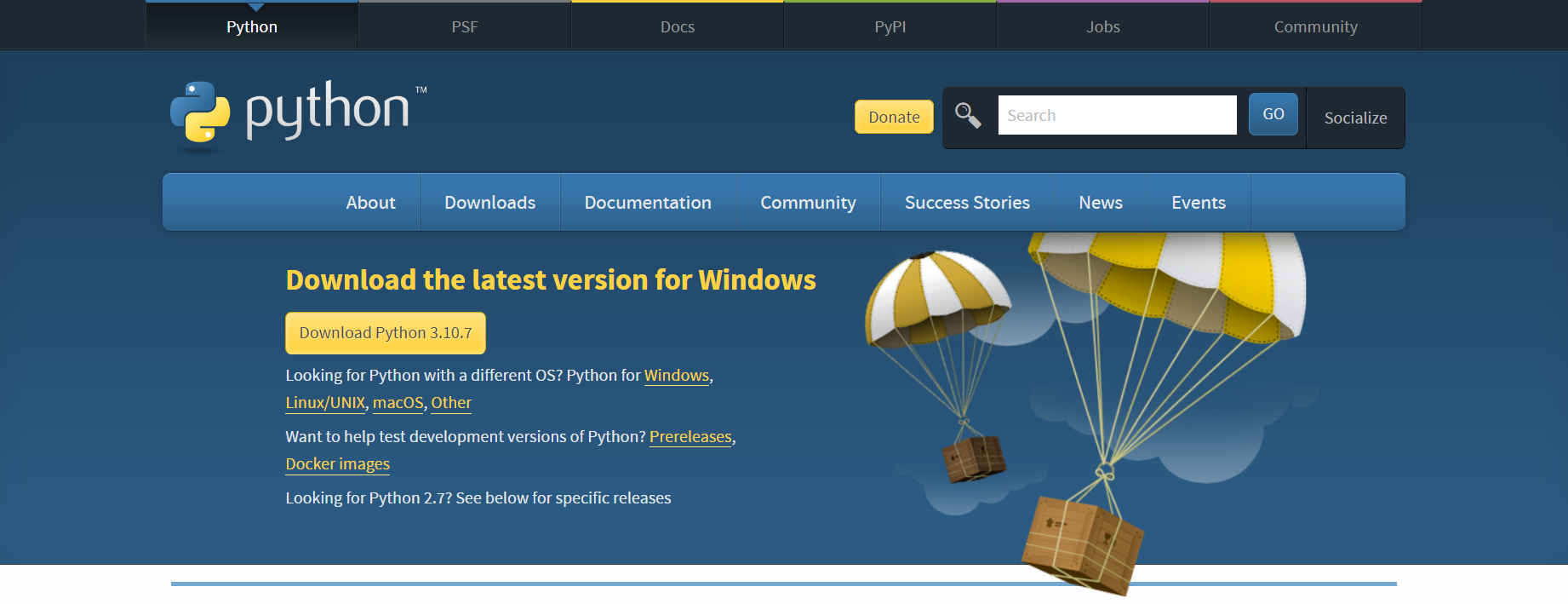
Step 1. Download the Python Installer
- Visit the official Python downloads page at python.org/downloads.
- For maximum stability with trading bots and asynchronous libraries, you can download releases directly from the official repository: Python 3.10 Releases.
- Download the Windows installer (64-bit) executable package.
Step 2. Configure Installation Options & System PATH
Launch the downloaded setup executable (python-3.10.x-amd64.exe).
Critical Requirement: Always check the "Add Python 3.10 to PATH" checkbox at the bottom of the setup window. This enables running
pythonandpipcommands directly from Windows Terminal, PowerShell, or CMD without manually editing environment variables.
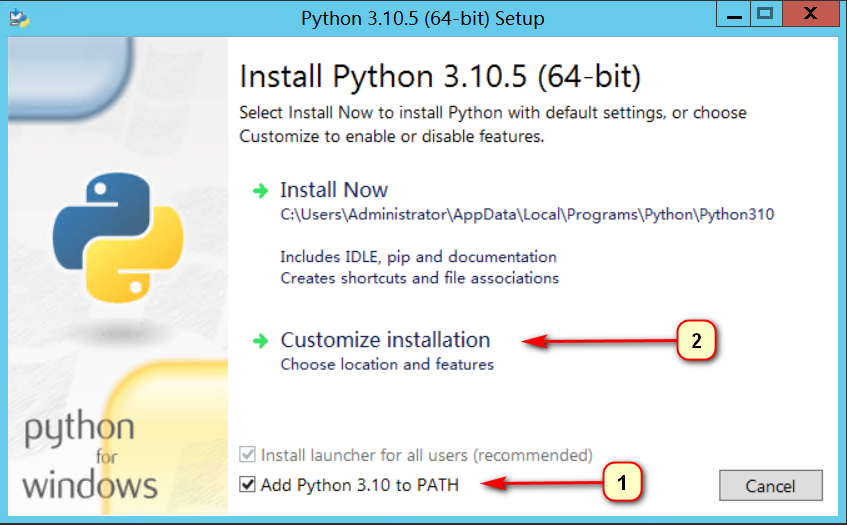
- Check Add Python 3.10 to PATH.
- Click Customize installation to manually define the target directory and optional components.
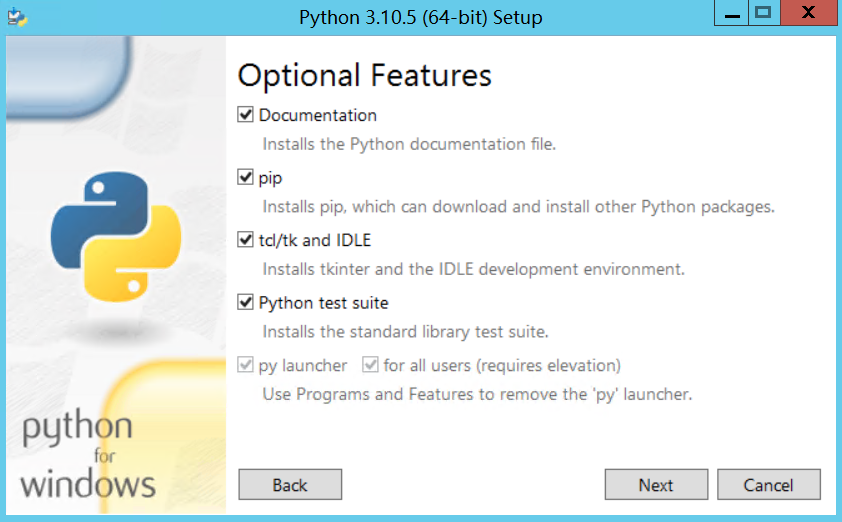
Step 3. Optional Features Setup
Ensure standard developer packages (including pip, documentation, and the test suite) are selected, then click Next.
Step 4. Set Custom Installation Directory (C:\Python310)
By default, Windows places Python deep inside the hidden AppData directory (C:\Users\<User>\AppData\Local\Programs\Python), which frequently causes permission errors and execution issues in automated background tasks.
- Check Install Python 3.10 for all users (recommended).
- Check Add Python to environment variables.
- In the Customize install location input field, set the path to:
C:\Python310
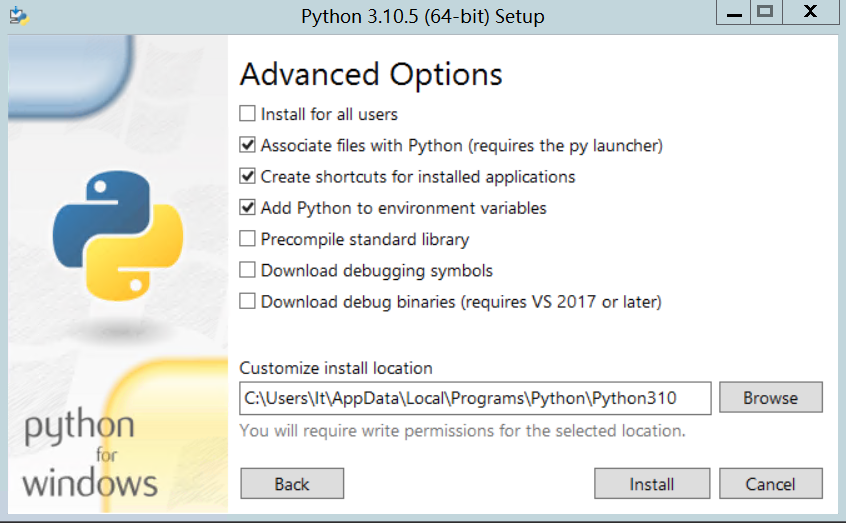
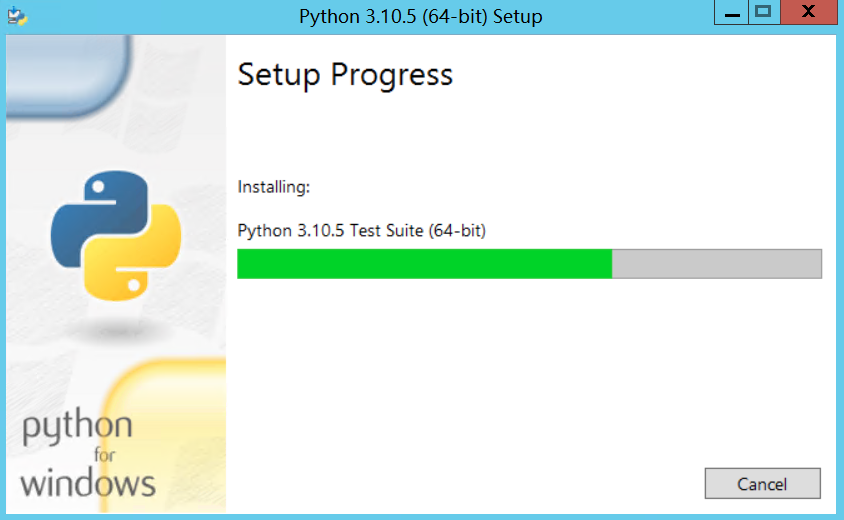
Click Install and grant Windows UAC Administrator permissions when prompted.
Step 5. Verification & Environment Testing
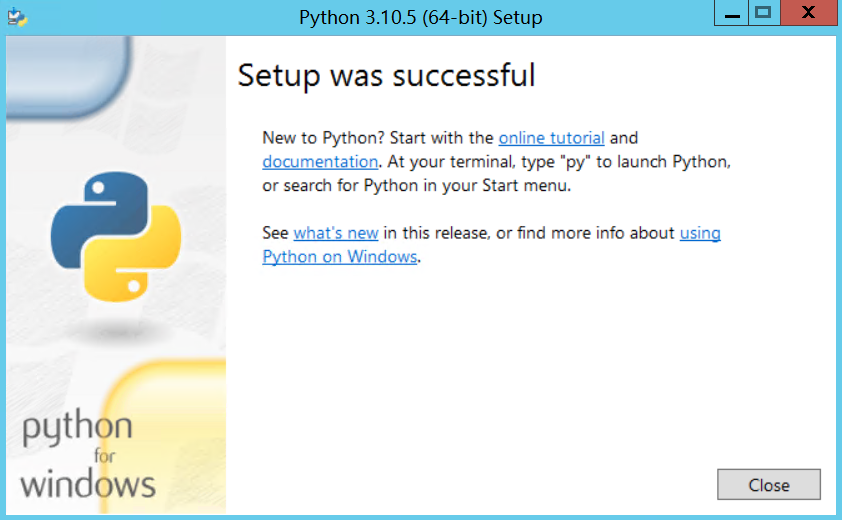
Once setup is complete, click Close.
To confirm that the Python interpreter and package manager are fully operational, open Command Prompt (CMD) or PowerShell and execute:
python --version
pip --version
If the console returns Python 3.10.x and the corresponding path to pip, your developer environment is ready for installing dependencies and deploying automation bots.